 Sonensei
 JSON Canopy
Explore and edit JSON as nested tables or as a form instead of raw text. Search keeps the structure around every match, and a JSON Schema adds validation, dropdowns and documentation for each field. It works in IntelliJ IDEA and other JetBrains IDEs, in VS Code, or as one HTML file in any browser.
Download
All three use the same editor and get the same features. Install the IDE plugin or extension from its marketplace to get updates automatically, or download the file here.
IntelliJ plugin
Opens .json files in an extra JSON Canopy tab next to the built-in editor.
For IntelliJ IDEA, WebStorm, PyCharm and the other JetBrains IDEs, version 2024.3 or newer.
VS Code extension
A custom editor for .json files that works on VS Code's own document, so undo, redo and save
work as usual. VS Code 1.100 or newer.
Standalone web app
One self-contained HTML file. Open it in any modern browser, offline if you like: no server, no account, no upload. Your JSON never leaves your machine.
Install the IntelliJ plugin from the .zip
- Settings → Plugins, then the gear icon → Install Plugin from Disk…
- Select the
.zip(don't unpack it) and restart the IDE if asked. - Open a
.jsonfile and pick the JSON Canopy tab.
Or search for JSON Canopy under Settings → Plugins → Marketplace.
Install the VS Code extension from the .vsix
- Extensions view → ⋯ → Install from VSIX… and select the file.
- Open a
.jsonfile with the table icon in the editor title bar, Open in JSON Canopy in the Explorer's context menu, or Open With… → JSON Canopy.
To always open JSON files in Canopy, add to your settings:
"workbench.editorAssociations": { "*.json": "jsonCanopy.editor" }New in 0.3.0
VS Code extension
The same editor, now also in VS Code. Edits go into VS Code's own document, and the page follows your colour theme.
JSON Schema support
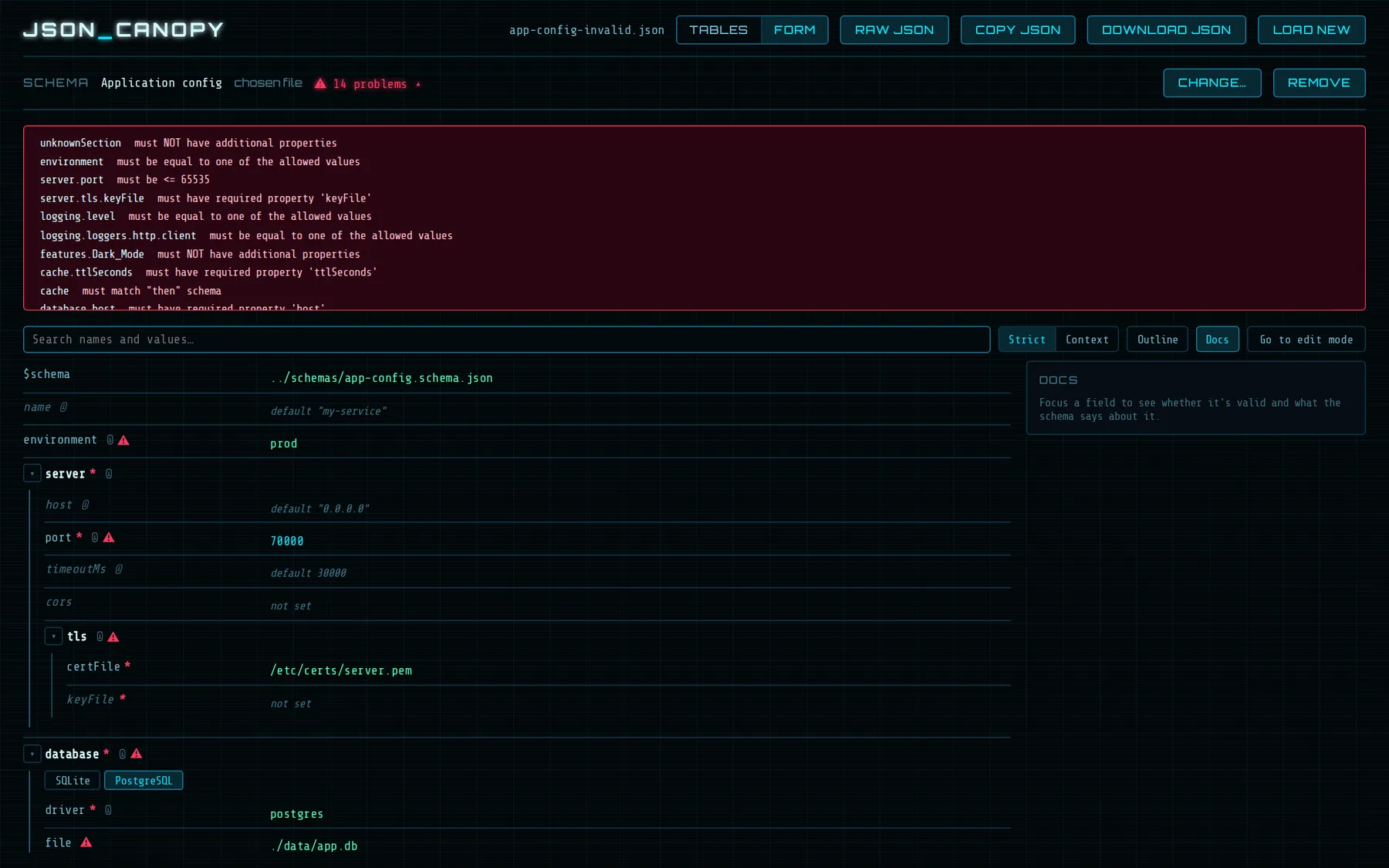
Problems are marked on the values and listed (click one to jump to it). Enums become dropdowns, absent optional
keys are offered, and the ⓘ shows descriptions, constraints, defaults and examples.
Form layout
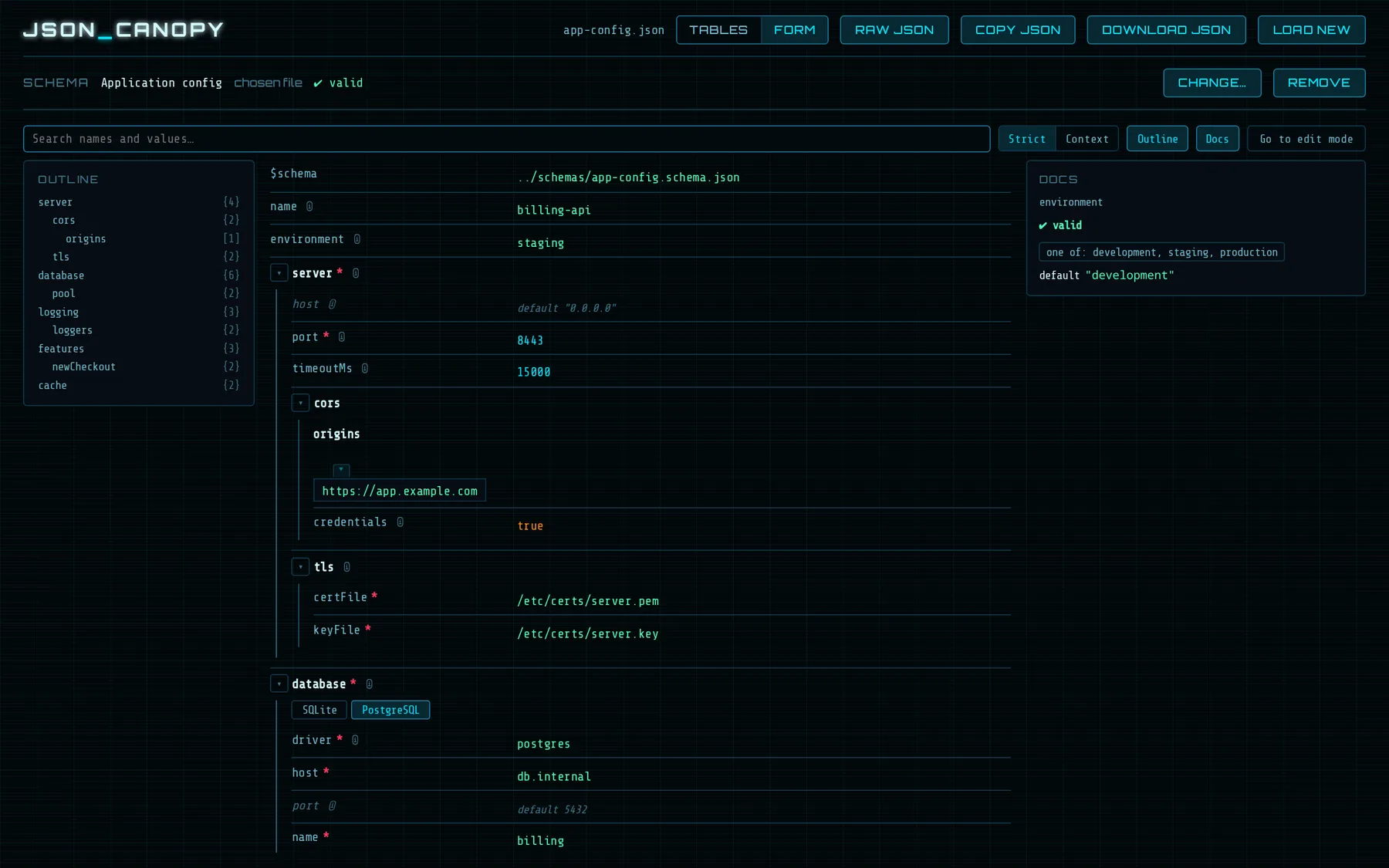
A Tables | Form toggle. The form shows labelled fields in schema order, with an outline,
a docs panel and a picker for oneOf/anyOf variants.
Simpler search
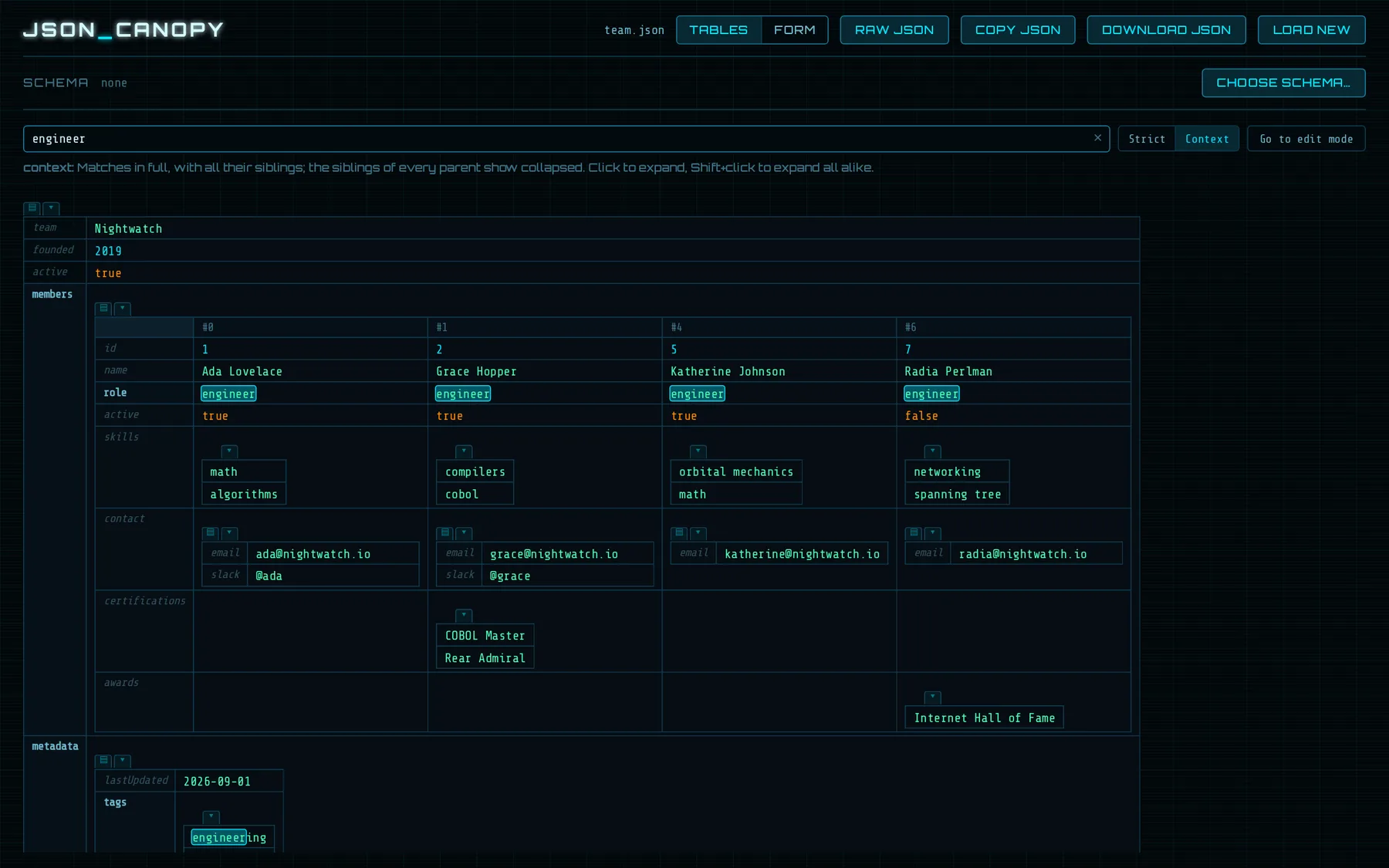
Two modes, Strict and Context, replace the earlier three, and fit both layouts.
Features
Explore
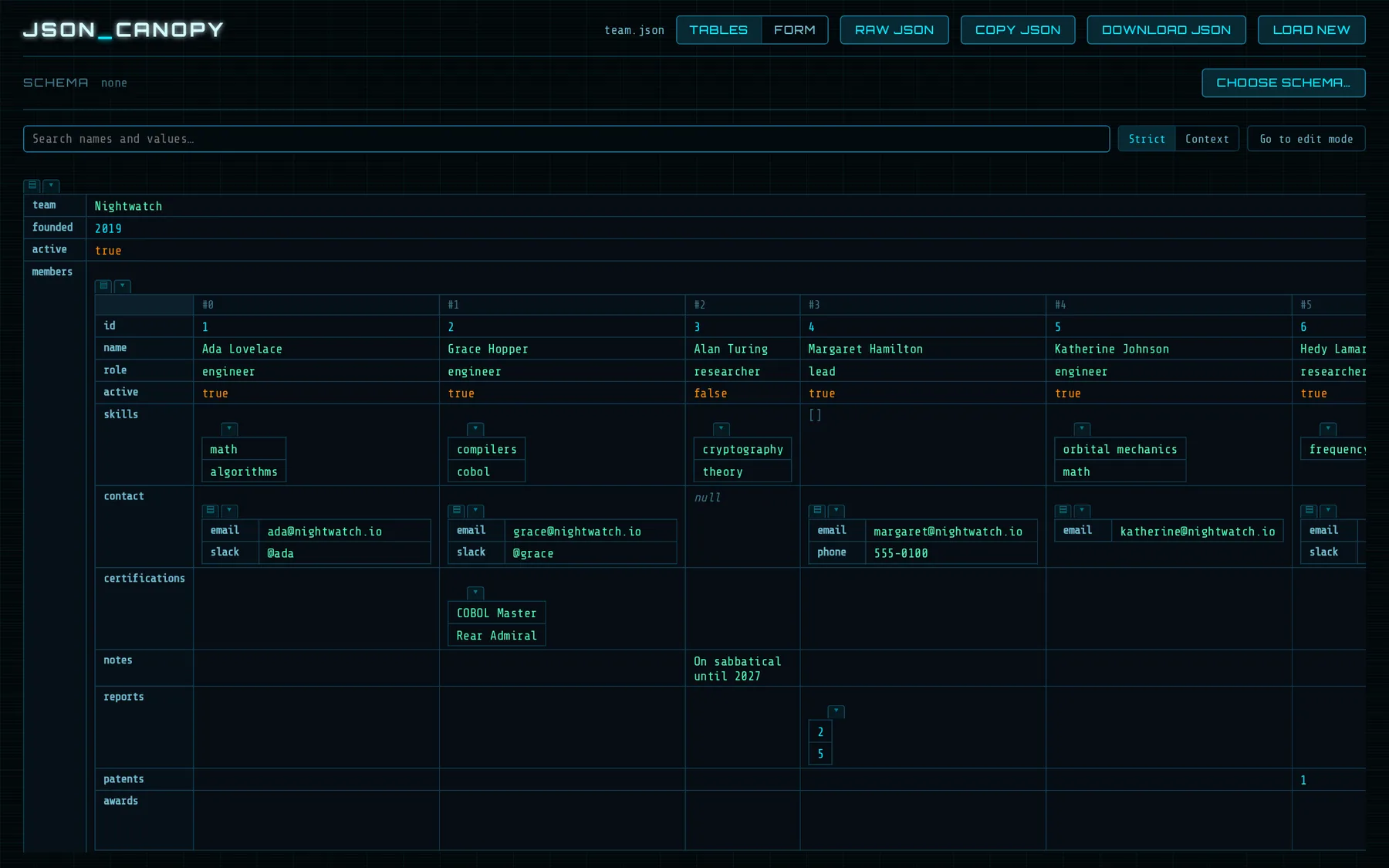
- Objects and arrays render as tables inside tables; an array of objects becomes one column per item, so you can compare entries side by side.
- Click a table to flip it between horizontal and vertical.
- Hide columns with the field selector (
▤). - Large arrays are paged, so big files stay responsive.
Collapse and expand
- Every object and array has a
▾button to collapse it; a collapsed node shows a chip like▸ { 3 }. - Shift+click applies to all related nodes, such as the same column in every row.
Edit in place
- Change any value directly. A type dropdown switches it between string, number, boolean, null, object and array; typing never changes the type by accident.
- Add or remove keys and items with
+and×. New items take the shape the schema or the other items suggest. - Edit the whole document as Raw JSON when that's quicker.
Schemas
- Validation with Ajv (draft-07 and 2020-12).
- Enums and
constbecome dropdowns, and the type dropdown offers only types that fit. - Optional keys that are missing show as ghost entries you can add with one click.
readOnly,deprecated, defaults and constraints are shown.- The schema only gives advice and never blocks an edit.
Form layout
- Objects as labelled fields in schema order.
- Outline panel: navigate by structure, with problem counts.
- Docs panel: whether the focused field is valid and what the schema says about it.
- Lists of records open as tables, other documents as a form. Your choice is remembered per schema.
In your editor
- The schema is found automatically: a local
$schemafirst, then IntelliJ's own JSON Schema mappings (including SchemaStore) or VS Code'sjson.schemassetting. - A remote schema is never downloaded without asking.
- Undo and redo work, and changes made outside Canopy show up right away.
- Light and dark themes follow the IDE.
Search: Strict and Context
One search box covers names and values. Matches are highlighted, and a line under the box explains the active mode.
| Mode | A matching name shows | A matching value shows | Around it |
|---|---|---|---|
| Strict | its value; a nested one collapsed (▸ { n }) | the value | only the parents, dimmed |
| Context | its whole value | the value | all its siblings in full; the parents' other attributes collapsed |
Screenshots
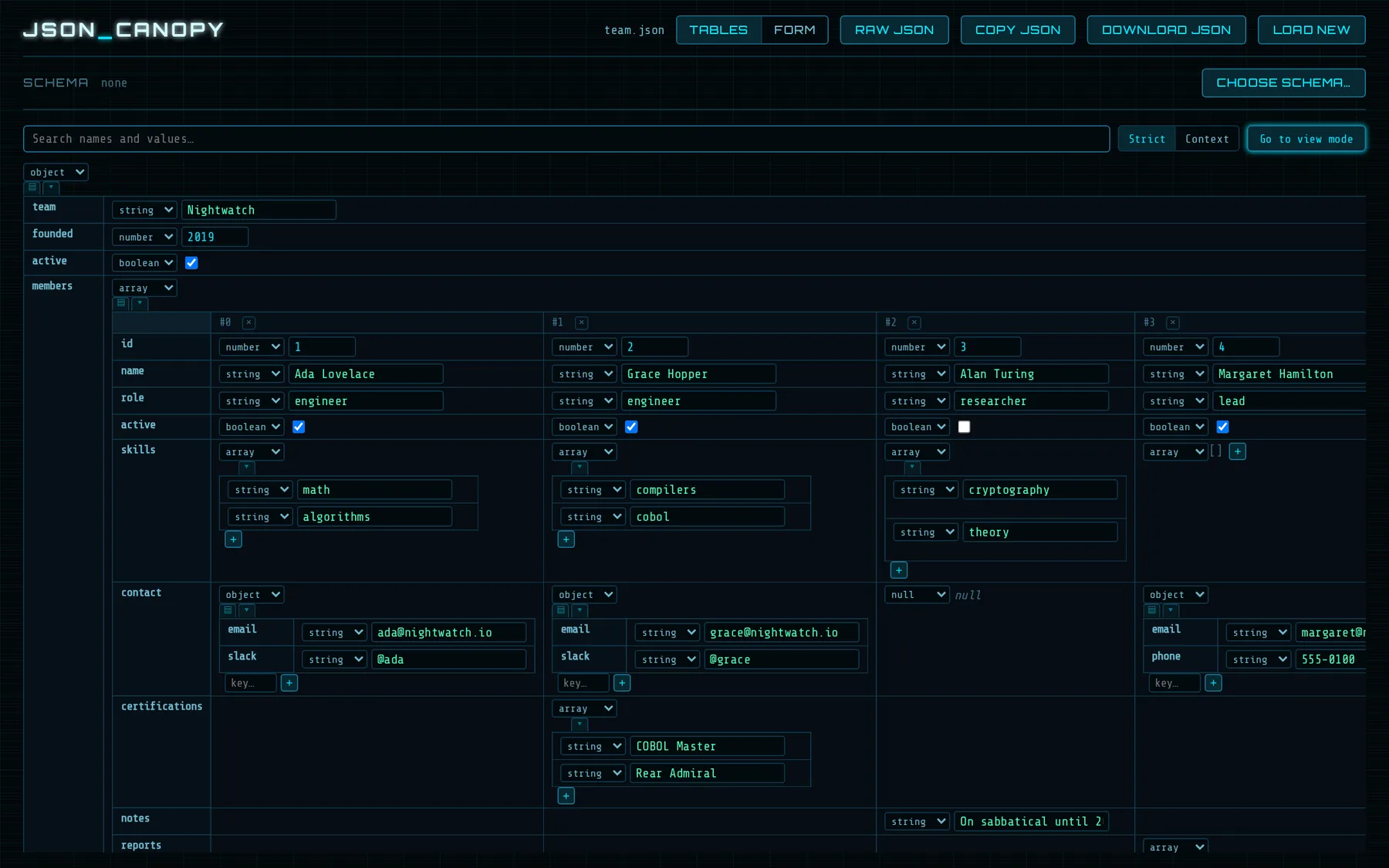
× and + to remove or add keys and items.Try it with sample files
Sample files
A team list, a search demo, and an application config with its schema, in a valid and an invalid version. Unzip them into one folder: in the IDE, the configs find their schema on their own.
In the browser
- Open JSON Canopy and choose Browse file… to load
app-config.json. - Click Choose schema… and pick
app-config.schema.json. (A browser page can't follow a relative$schemaon its own.) - Switch to Form, open Outline and Docs, and click a field.